
Create and Assign Personas
Create and Assign Personas
In this tutorial, you'll learn what personas are, how they work, and how to assign them to your test cases.
What you'll accomplish:
- Create custom personality profiles for testing
- Use Evalion's predefined personas
- Assign personas to test cases for realistic simulations
What are Personas?
Personas in Evalion define how simulated users behave, communicate, and interact with your AI agent during testing. They help you simulate real-life user personalities, such as an impatient customer who has no time for pleasantries or a detail-oriented user who asks many clarifying questions.
Personas encompass the user's communication style, patience level, technical knowledge, and interaction preferences, allowing you to test how your AI performs across diverse user types and challenging scenarios.
Creating Custom Personas
To create a new Persona, follow this walkthrough:
1. Access the Dashboard
Log in to your Evalion account and navigate to Personas in the left sidebar menu.

2. Create a New Persona
There are two methods for setting up Personas on Evalion:
- Predefined Personas: Select from Evalion's curated library of tested personality types
- Custom Personas: Build unique personas tailored to your specific user base
Create Custom Persona
To create a custom persona, navigate to the personas page and click Create Persona. In the persona modal, enter your persona details:
- Name: The name of your persona.
- Language: Select a language.
- Description: Describe this persona's characteristics, behavior, and communication style.
- Large Language Model (LLM): Select a LLM provider and LLM model.
- Text-to-Speech (TTS): Select a TTS provider, TTS model and TTS voice.
Click Create Persona to create the Persona. You can create as many Personas as you need for your AI agent.

3. Assign Personas to Test Cases
There are two ways Personas can be assigned to your AI agent tests:
- New Test: Personas are assigned when setting up a new test for your agent
- Existing Test: Add new personas to an existing test suites
Assign Persona to New Test Case
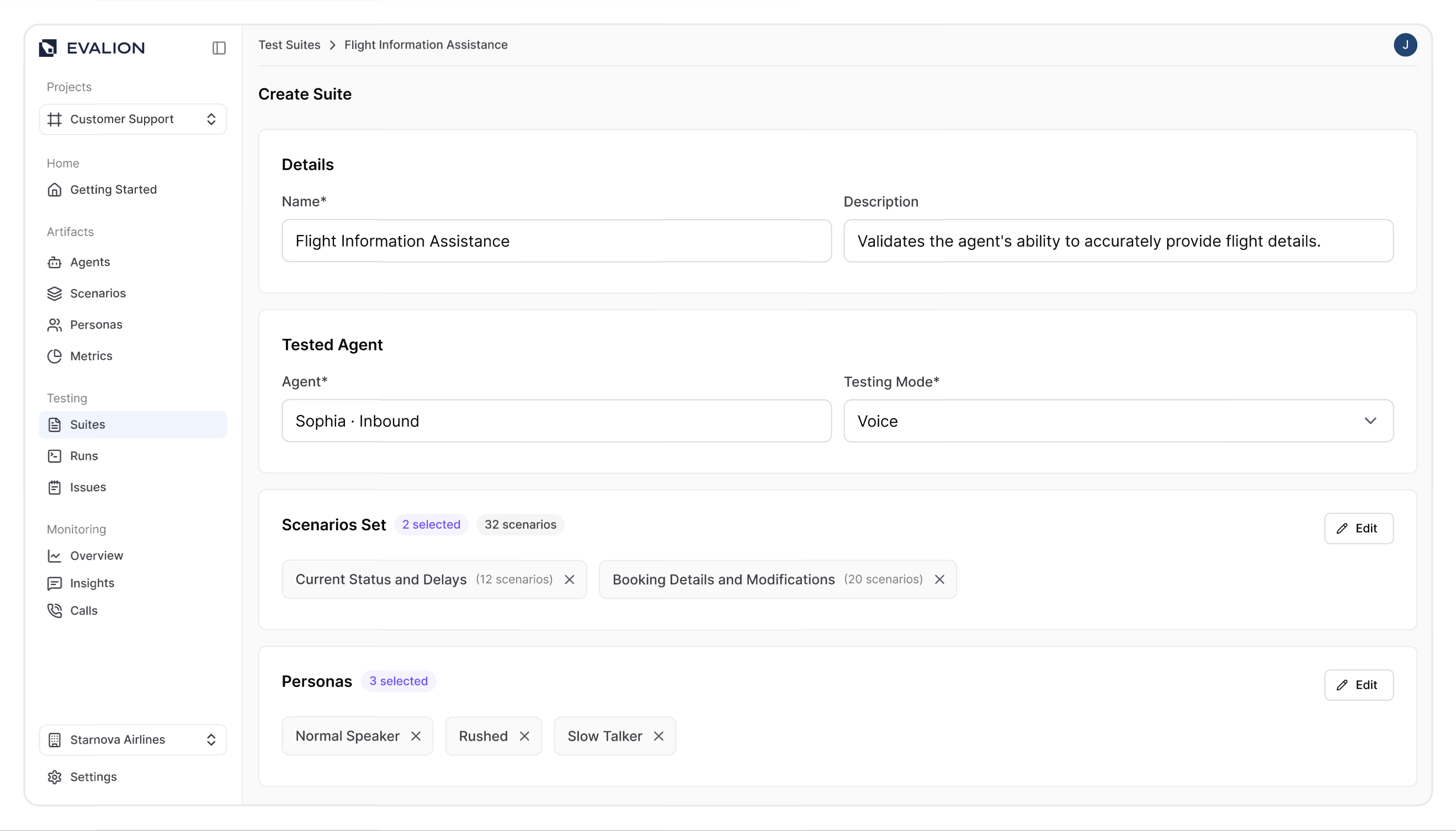
In the Evalion dashboard, navigate to the Suites tab and click Create Suite to create a new test.
Once you fill in the suite information, click Add Personas to assign your Persona. You can select as many personas as you like, but assigning at least one to a test suite before creating a test case is essential.

Click the Create Suite to include your personas in your new test case.
Assign Persona to Existing Test Case
When testing your agents, you may consider assigning additional personas to an existing test case. To do this, navigate to the Suites page in the sidebar and select your test suite.
Click the Edit button in the Personas section. In the Personas modal, select your additional personas and click Confirm to assign the new personalities.
Next, click Update Suite to save your changes to the test case.
Finally, you can rerun your test suites, and the assigned personas will be used in the simulations.
Summary
Through this tutorial, you've learned how to create custom personas that reflect your real user base, leverage Evalion's predefined personality types for quick setup, and assign these personas to both new and existing test cases.
The following tutorial will explore how to analyze test results across different personas.
Updated about 2 months ago