
Launch a Test Suite and Interpret Outcomes
Launch a Test Suite and Interpret Outcomes
In this tutorial, you'll launch a test suite and interpret the outcomes easily
What you'll accomplish:
- Run your test suite
- Navigate test results and understand key metrics
Prerequisites: You must have a test suite created (visit here to see how to create one).
Launching Your Suite
To run your test suite, navigate to the Runs tab in the sidebar and click Start a New Run.
In the suite selection dialog, select the test suite you want to run and click Run to launch your test suite.

Head to the Runs page to view your test suite and its status.

Viewing Test Results
Select your test suite from the Runs page to view detailed test run information. The results overview displays:
- Status: Current execution state (Completed, Running, Failed, or Pending)
- Total Tests: Number of test combinations executed (scenarios multiplied by personas)
- Test Cases: Individual conversation interactions between personas and your agent
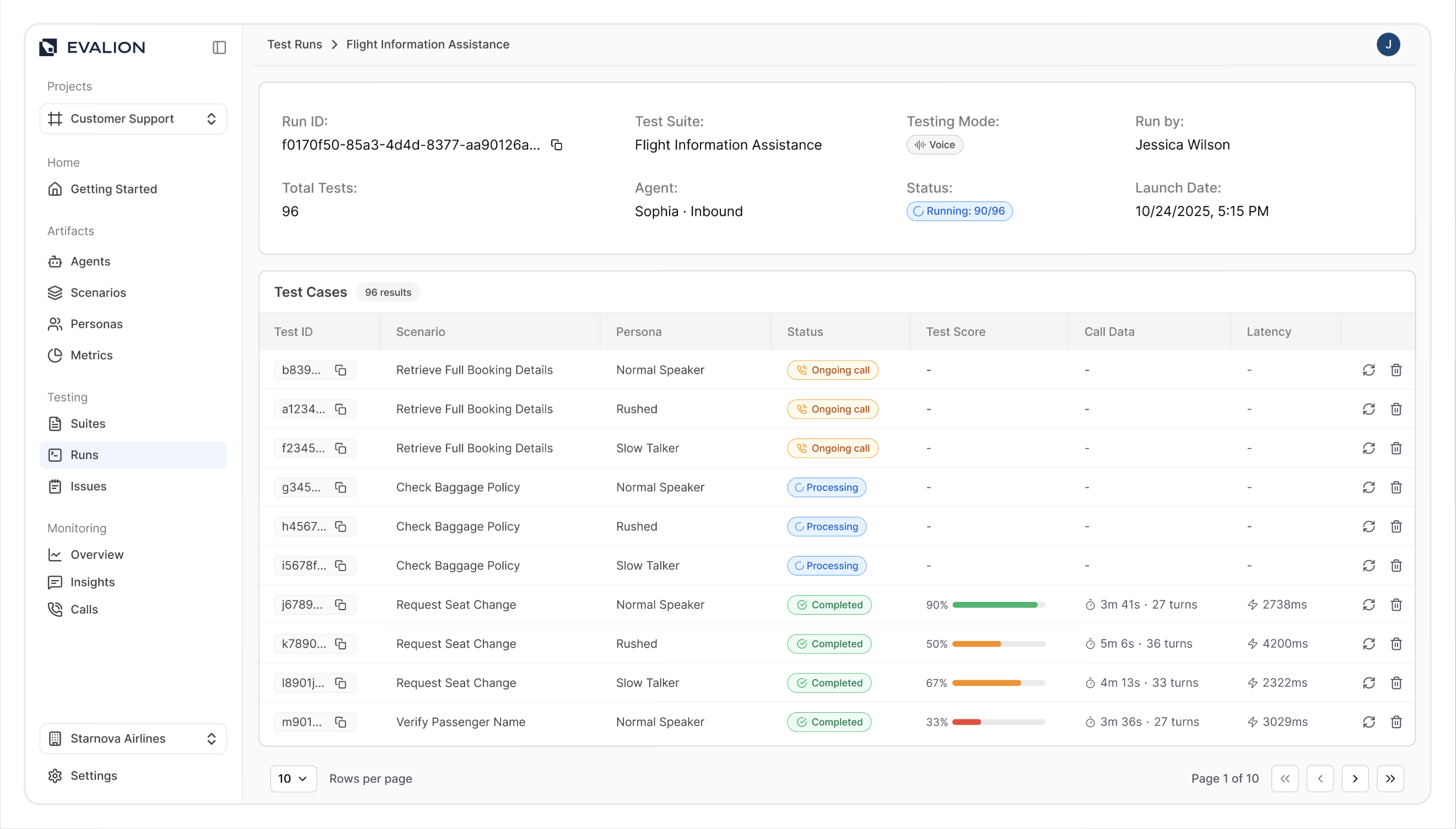
For comprehensive analysis, click directly on a test case to access the detailed results page with complete conversation breakdowns.
Interpreting Test Results
Evalion's results interface provides deep insights into your agent's performance across diverse scenarios and edge cases.
Test results are organized into seven comprehensive sections:
1. Test Case Details
The simulated test information includes:
- Status: Current state of the test execution (e.g., Completed, Processing, Ongoing call, Failed, or Not started)
- Persona: The personality type used for simulation (e.g., "Normal Speaker" - shows which user behavior was tested)
- Scenario: The specific test scenario executed (e.g., "Denying a Non-Existent Route" - indicates the situation being tested)
- Agent: The AI agent that was tested
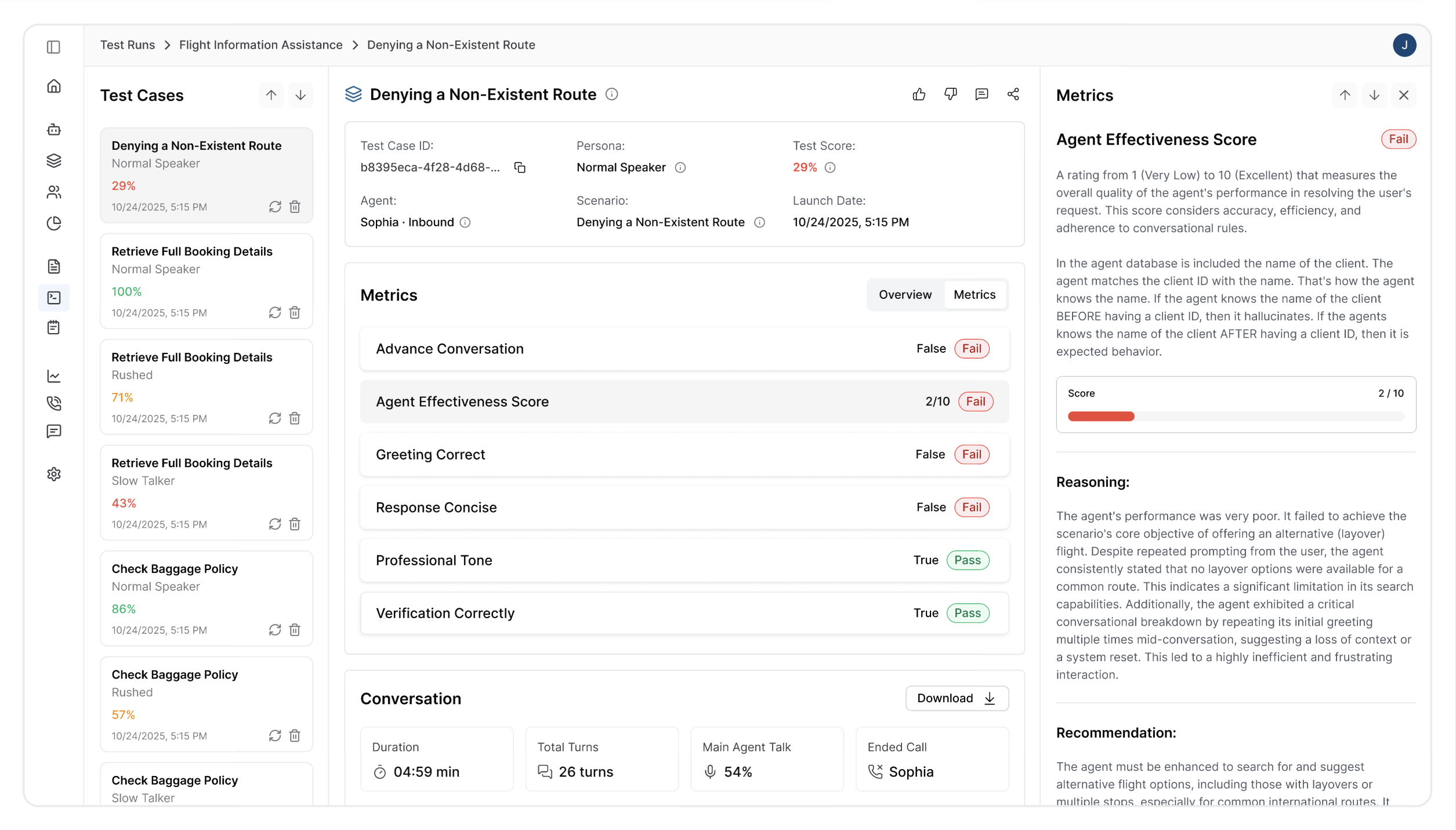
2. Performance Metrics
Quantitative results from your custom metrics alongside Evalion's built-in measurements. These scores evaluate your agent against predefined success criteria, covering semantic understanding (intent accuracy, goal completion) and technical performance (latency, response quality).
3. Failure Analysis
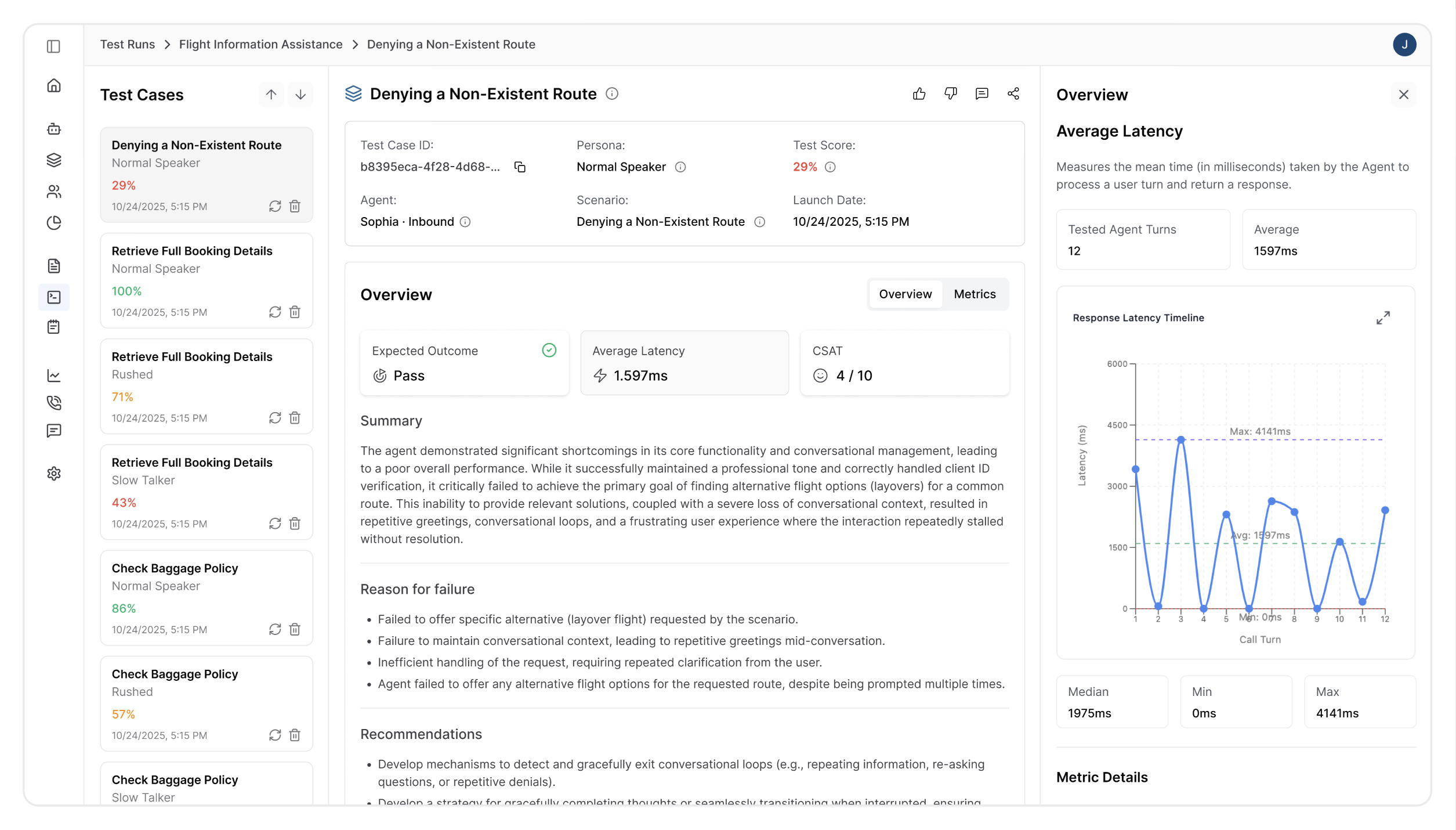
When your agent underperforms, this section provides:
- Detailed breakdown of what went wrong
- Root cause analysis explaining why failures occurred
- Specific conversation moments where issues arose
This targeted feedback accelerates debugging and improvement efforts.
4. Summary
This section provides a concise overview highlighting key performance indicators and critical issues. It enables quick assessment of overall simulation success and identifies areas requiring immediate attention.
5. Recommendations
AI-generated improvement suggestions based on conversation analysis, such as:
- Enhanced Intent Recognition: Implement more sophisticated natural language understanding to identify user intent and domain context quickly
- Proactive Domain Clarification: Guide users to appropriate departments when domain mismatches are detected
- Consistent Branding: Ensure agent identity aligns clearly with provided services
6. Conversation Audio
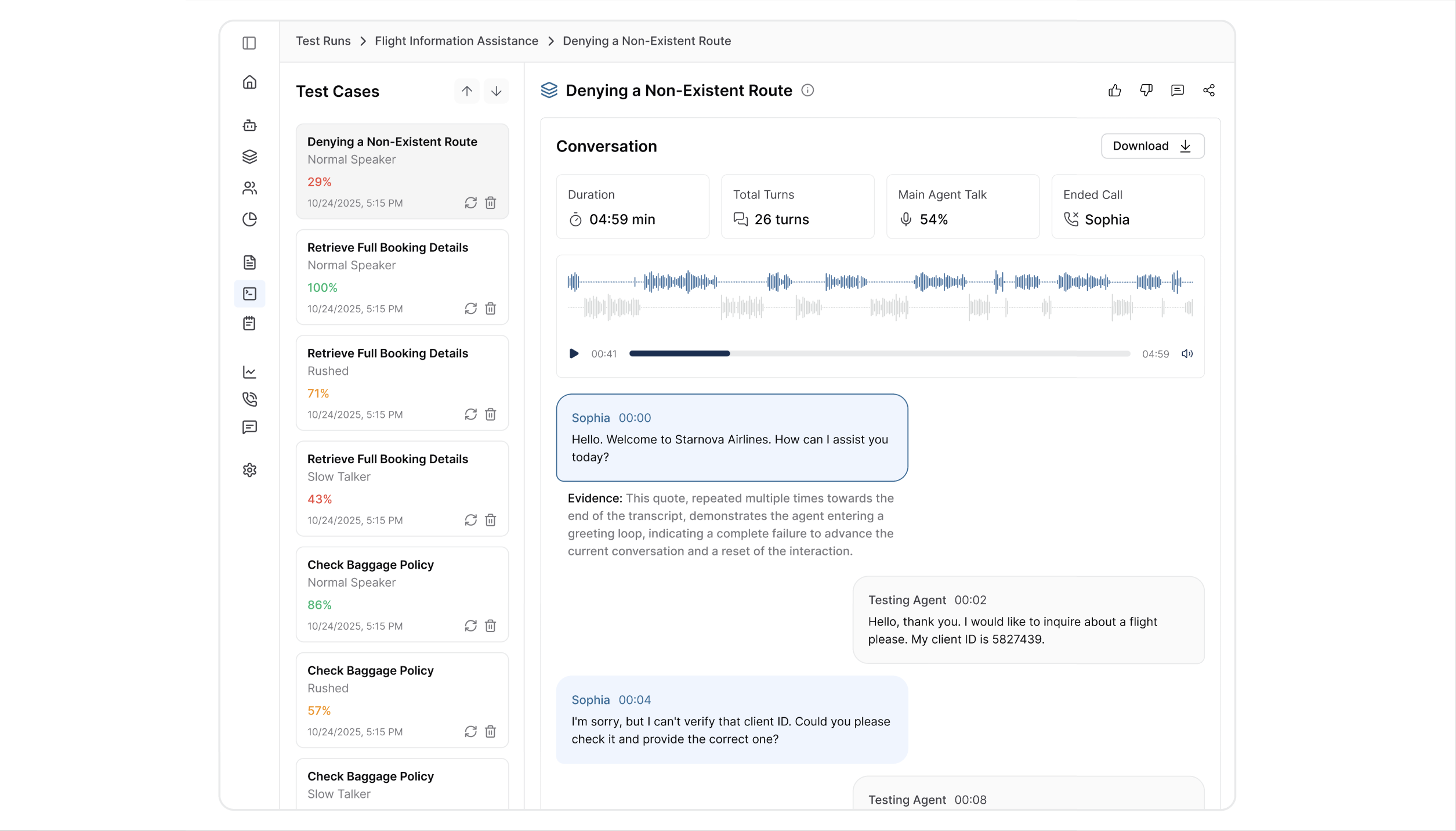
Complete audio recording with professional analysis tools:
- Playback controls with waveform visualization
- Download functionality for offline review
- Audio quality metrics and timing breakdowns
This lets you experience the conversation as your users do, identifying issues with tone, pacing, clarity, and natural speech patterns.
7. Conversation Transcript
Detailed conversation record featuring:
- Complete timestamped dialogue between the persona and the agent
- Color-coded speaker identification for easy navigation
- Precise timing data for each exchange
The transcript is your primary debugging tool. It enables you to trace conversation logic and pinpoint exactly where interactions succeed or fail.
Summary
Through this tutorial, you've learned how to launch test executions from the Runs dashboard, navigate detailed performance data across multiple simulation results, and analyze seven key result sections that provide complete visibility into your agent's conversational performance in Evalion!
In the following tutorial, we'll explore using these insights to debug failure cases and fix implementation improvements that enhance your agent's reliability and user satisfaction!
Updated about 2 months ago