
Create Custom Test Cases
Create Custom Test Cases
In this tutorial, you'll create a comprehensive test suite for your AI voice agent.
What you'll accomplish:
- Set up realistic conversation scenarios that mirror your users' needs
- Configure different personality types to test how your agent handles various interaction styles
- Create a complete test suite
Prerequisites: Your AI agent should be accessible via API or Phone line.
Why Test Voice Agents?
Traditional software testing assumes predictable inputs and outputs. But voice AI introduces a chaotic variable, the human speech.
Your integration tests might pass perfectly, but your voice agent could still confuse "Cancel my order" with "Cancel my daughter," a mistake that could destroy your users' trust.
The challenge: Voice interactions are really unpredictable. Users speak with different accents, use various phrasings, talk over background noise, and express the same intent in countless ways. Traditional unit and integration tests can't capture this real-world messiness.
The solution: A testing framework that mirrors actual human interactions. Evalion provides three testing modes designed specifically for voice AI:
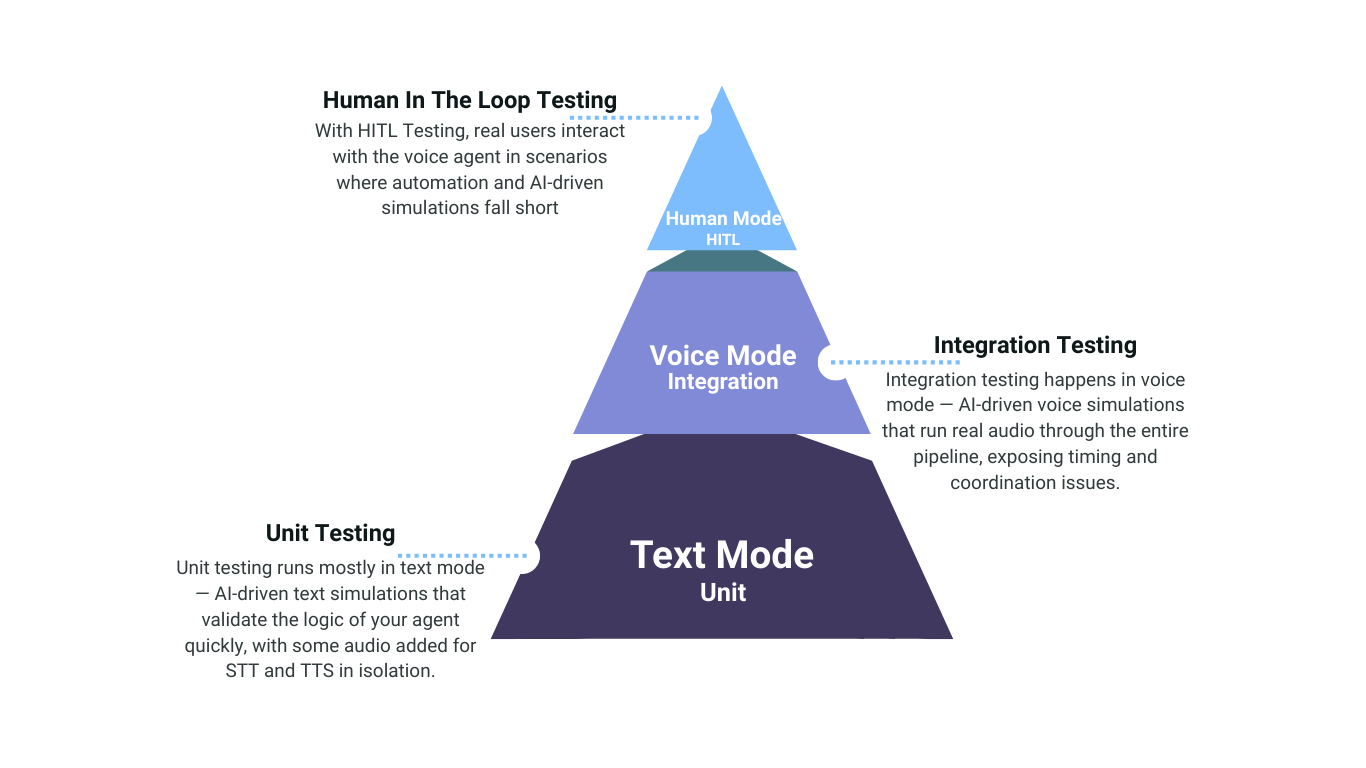
In this tutorial, we'll use Voice Mode to create integration tests that simulate real user conversations with your agent.
Setup a Test Case: step-by-step instructions
Now that you understand why testing your AI voice agent is important and why we're using Evalion, let's create our first test case. In this tutorial, we'll be testing a FitCore AI voice agent.
Before following along, make sure you have the following:
- An Evalion account (sign up here if you haven't already)
- Your AI agent's Phone number
1. Create Your Evalion Project
Start by creating a new Evalion project in the Evalion dashboard.
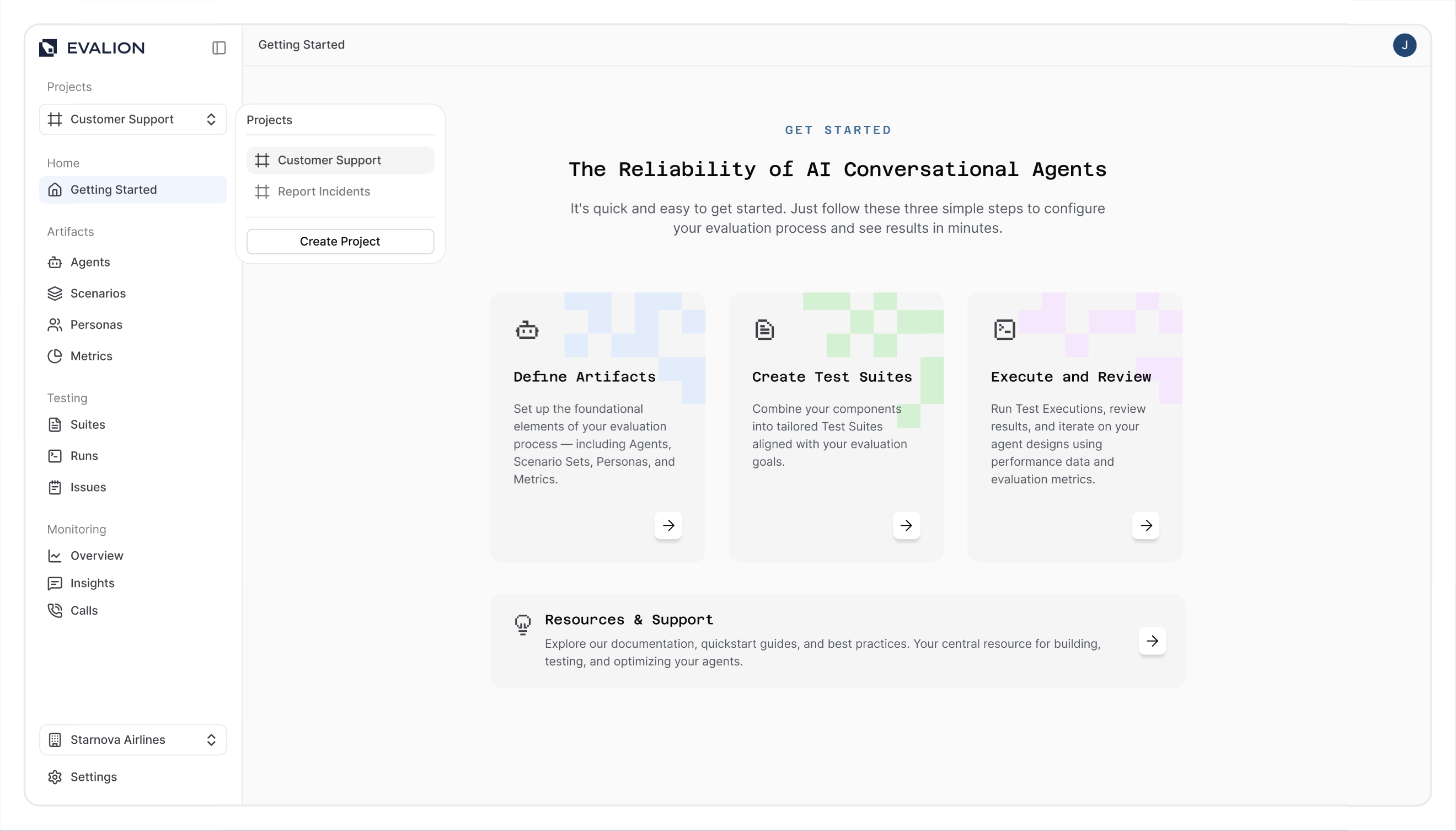
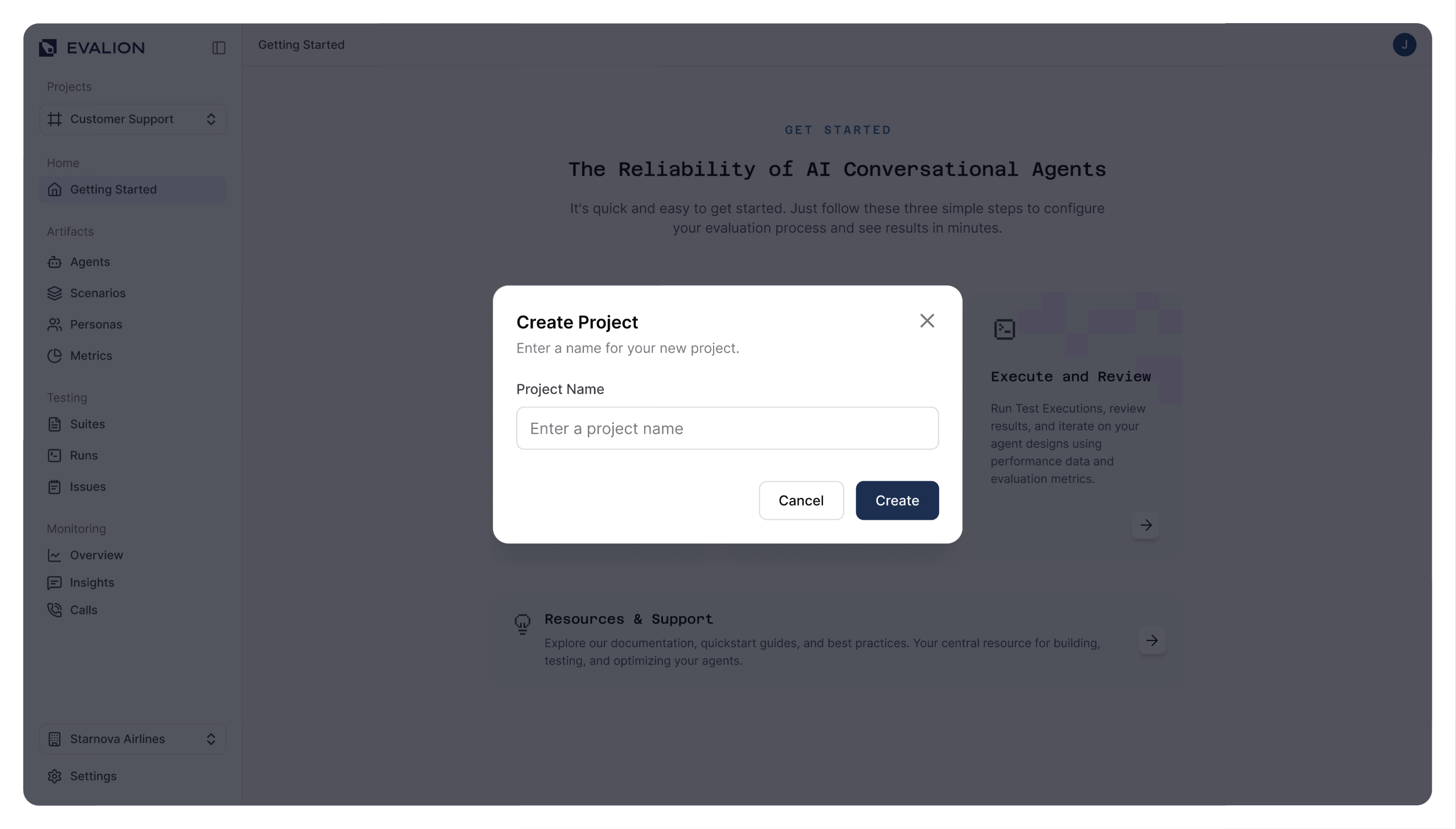
Name your project and leave the project options as default.
Once your project is created, you're ready to connect your agent.
2. Connect Your Agent
Navigate to the Agents tab in the left sidebar of your dashboard and click the Connect Agent button to create a new agent connection. This will open the agent configuration form to establish a connection with your AI voice agent.
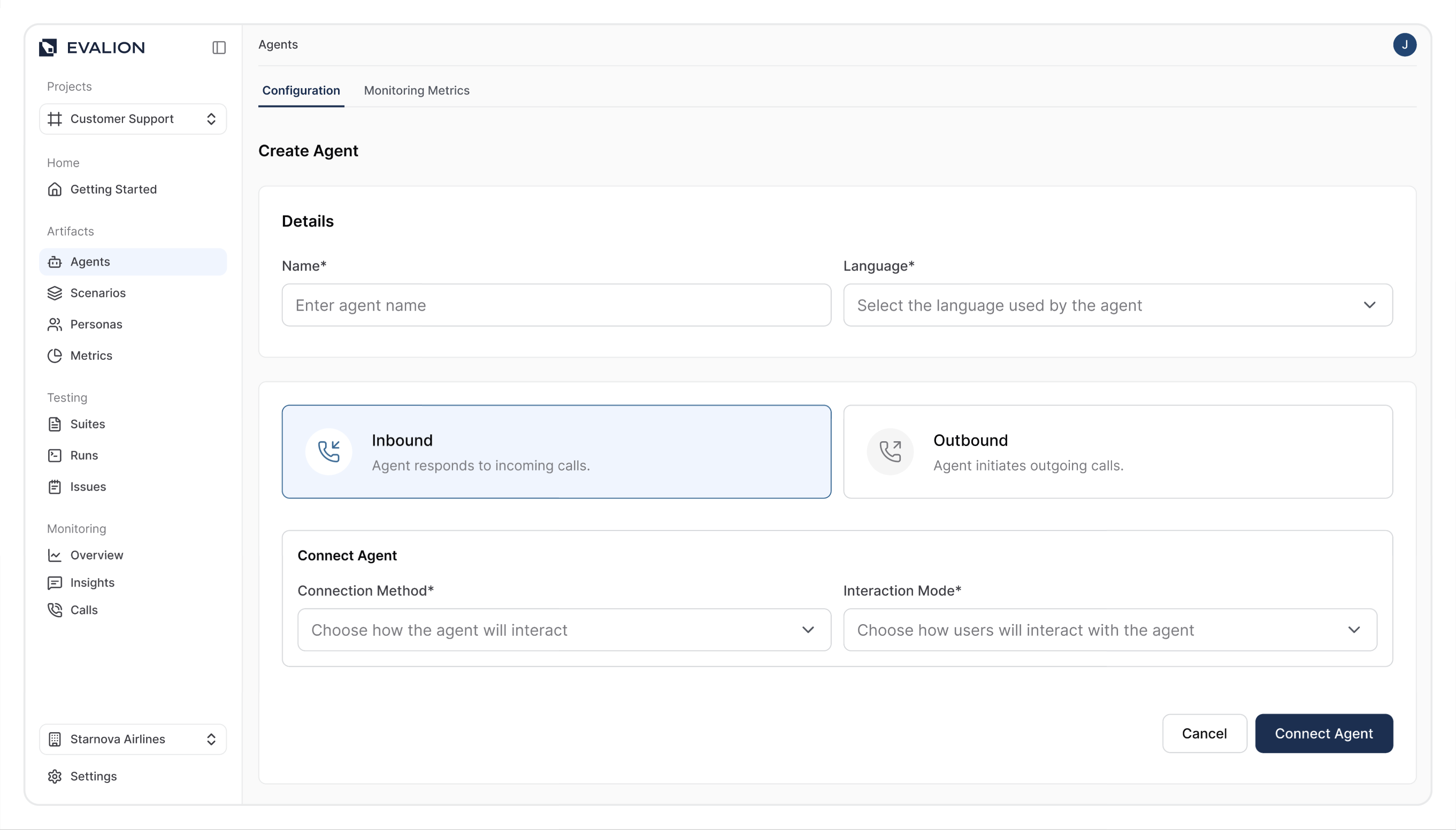
In the configuration page:
- Enter your Agent Name
- Select the language used by the agent Language
- Select Inbound Voice for the agent type
- Choose how the agent will interact Phone or API
- Choose how users will interact with the agent Voice or Text
- Provide the number that Evalion will call Phone Number
Click Create Agent to establish the connection.
3. Create Test Scenario
Scenarios define the specific situations you want to test. Navigate to Scenarios in the left sidebar and click Create Scenario Set.
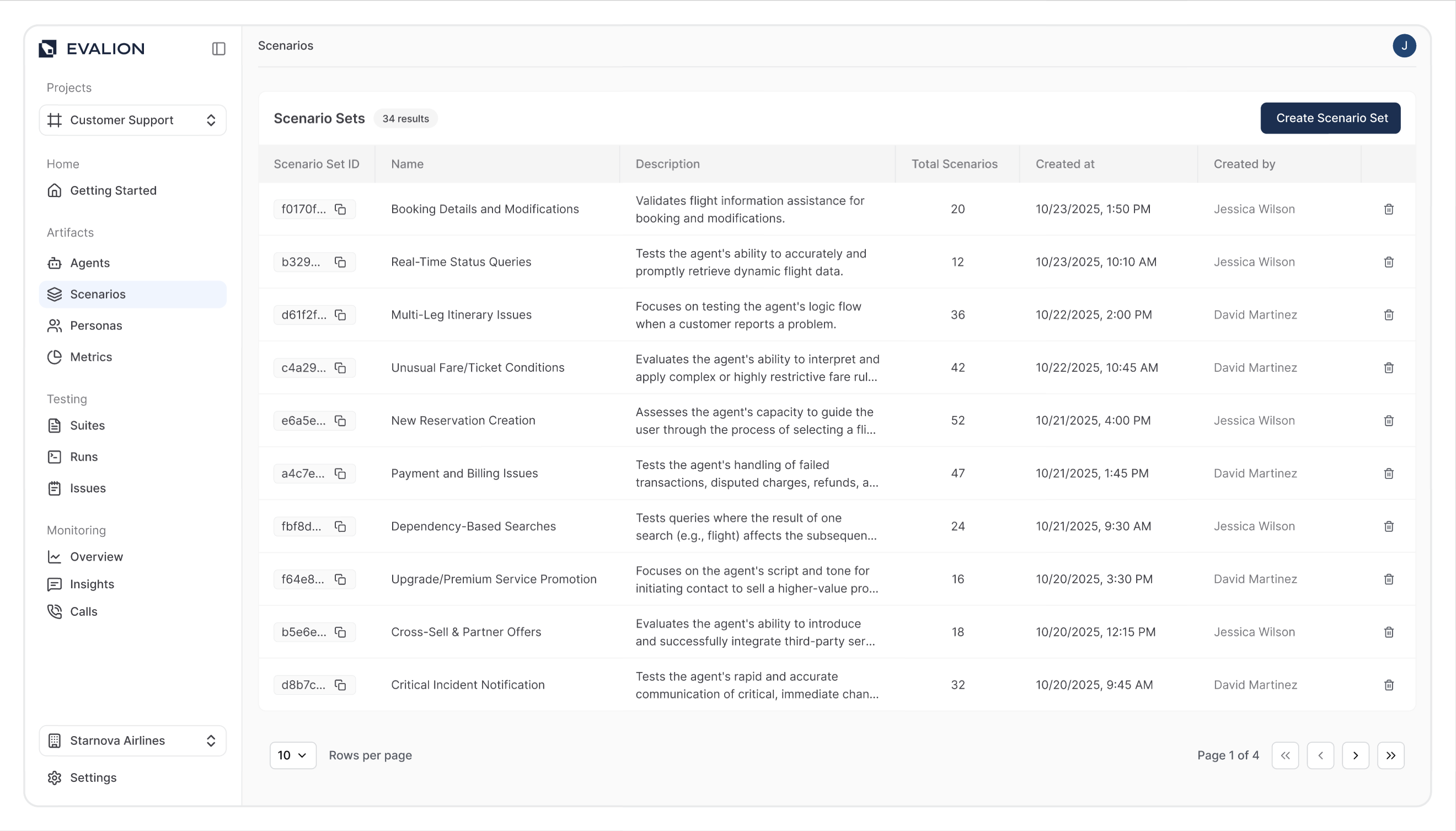
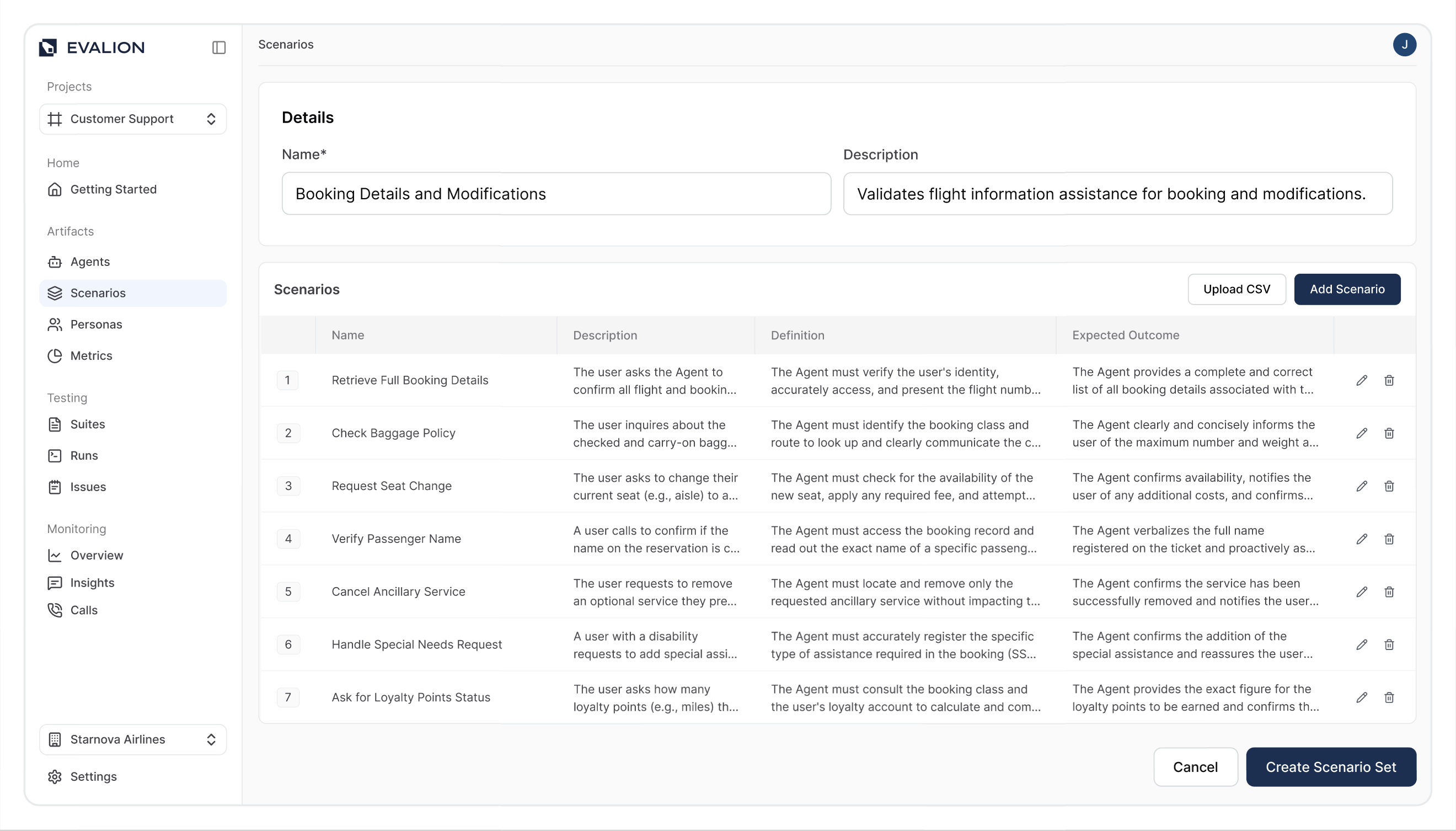
Set your Scenario Set name and description, then click Add Scenario to create your first test scenario.
Note: Evalion allows you to organize related scenarios into Scenario Sets for easy management.
In the scenario modal, enter:
- Scenario Name: New Member Goal-Based Booking
- Scenario Description: A new member wants to lose weight and follows AI prompts to book a session.
- Definition: The user calls stating they are a new member who wants to lose weight, doesn't know any trainers, and follows the AI's guidance to book an appropriate session.
- Expected Output: The AI identifies the user's goal ("weight loss"), recommends Marcus (the weight loss specialist), explains why he's a good match, and successfully books the session with all required details.
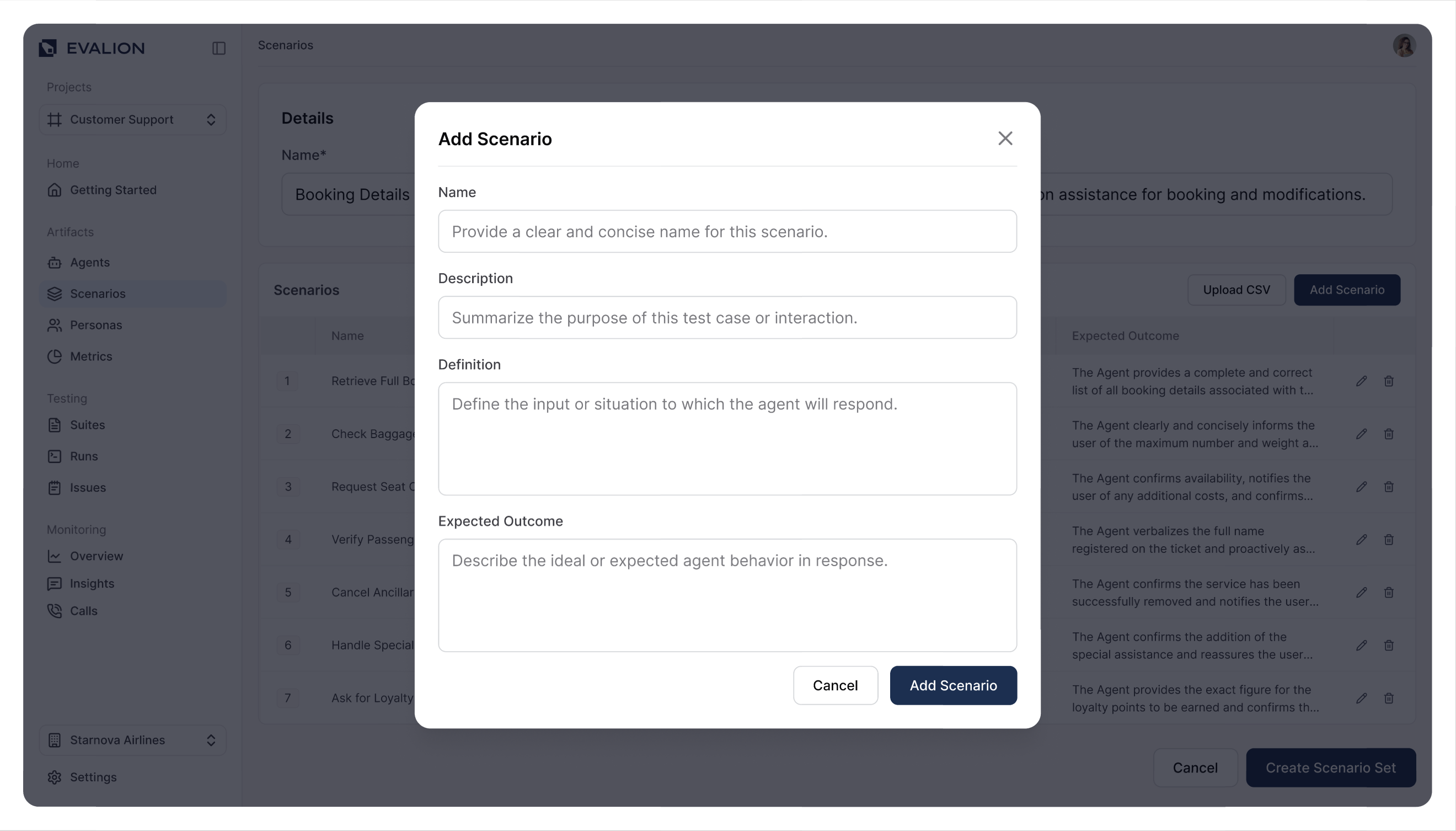
Key Point: The expected output determines whether your agent passes or fails this scenario.
Once added, your scenario appears in the scenarios list. You can create multiple scenarios per set. Click Create Scenario Set to finalize.
4. Configure Success Metrics
Evalion lets you create semantic and technical metrics to measure conversational success. Navigate to Metrics and click Create Metric.
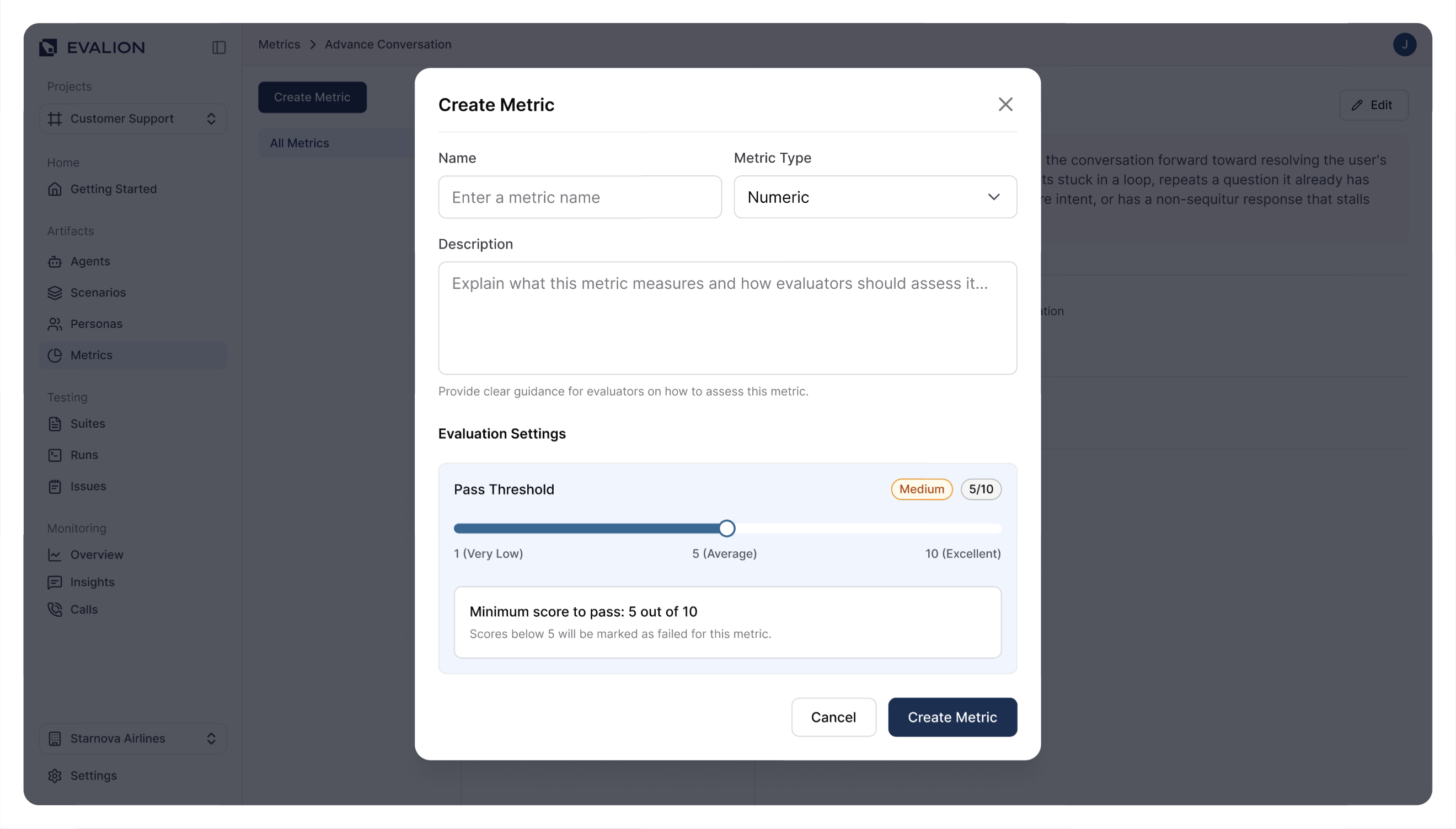
Create your first metric:
- Metric Name: Information Accuracy and Guidance
- Metric Type: Numeric
- Metric Description: This measure measures whether the agent provides correct information (trainer availability, specialties, pricing) and effectively guides the user through the booking process.
- Pass Threshold: Set minimum score to pass: 7 out of 10
Click Create Metric to save the metric.
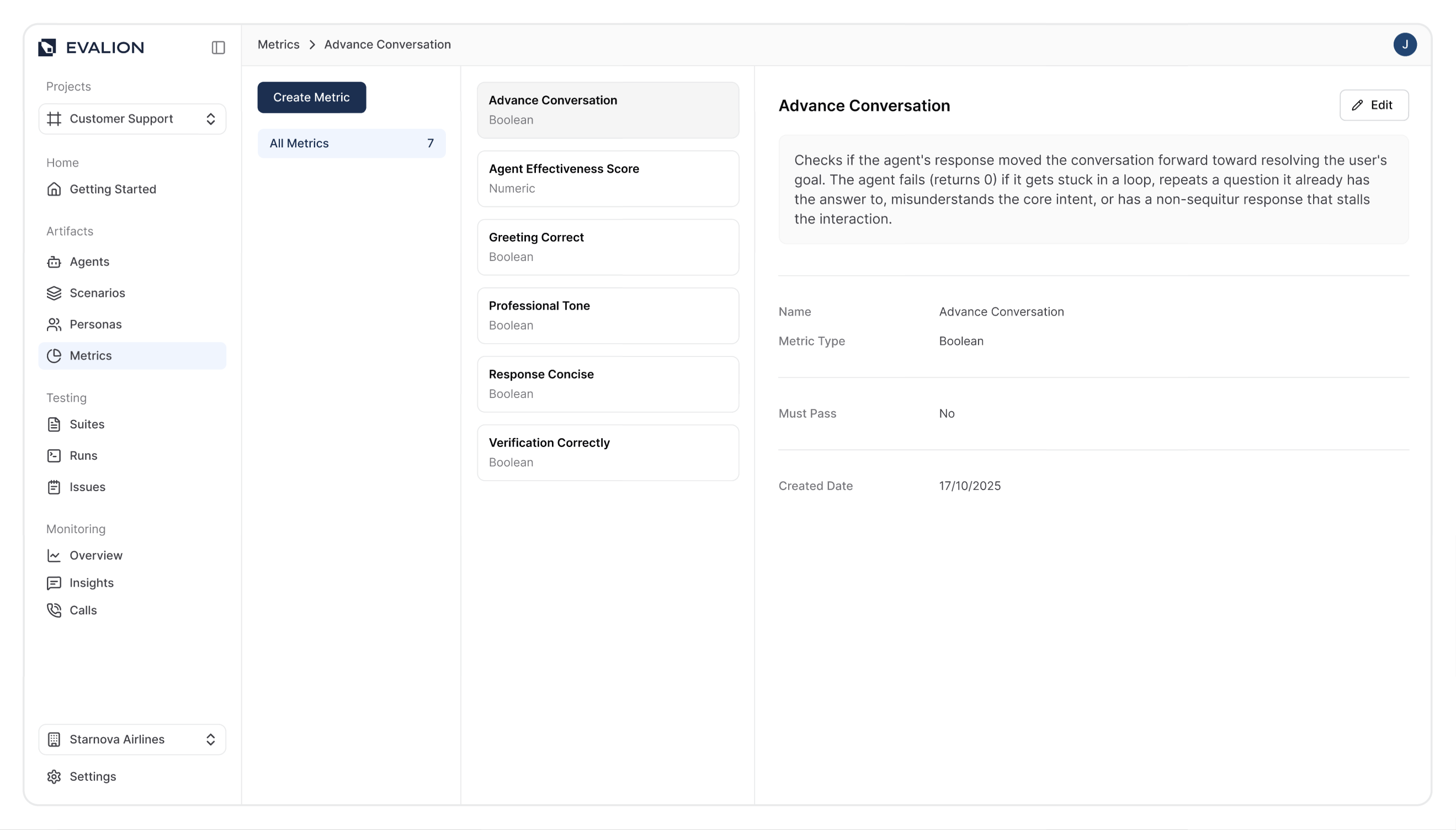
Create your second metric:
- Metric Name: Advance Conversation
- Metric Type: Boolean
- Metric Description: Checks if the agent's response moved the conversation forward toward resolving the user's goal. The agent fails (returns 0) if it gets stuck in a loop, repeats a question it already has the answer to, misunderstands the core intent, or has a non-sequitur response that stalls the interaction.
Save to add the second Metric.
5. Build Your Test Suite
Navigate to Suites in the left sidebar and click Create Suite.
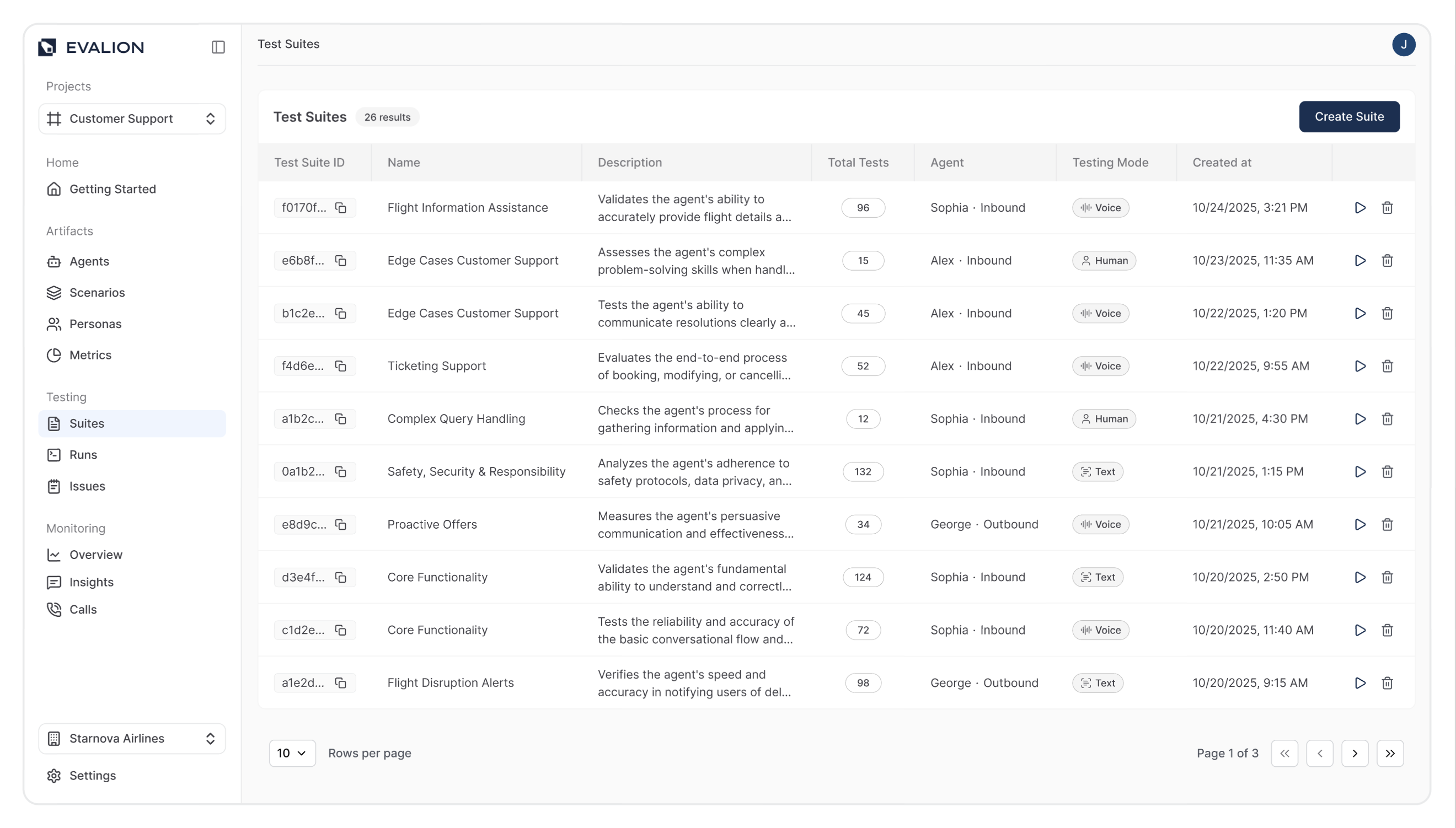
On the next page, you'll see the test suite configuration page. Enter your test case name and description:
On the test suite configuration page, enter:
- Name: Flight Information Assistance
- Description: Validates the agent's ability to accurately provide flight details.
In the tested Agent section, select your agent and set the voice type to Voice.
Now configure your test components:
- Add Scenario Sets: Click Add Scenario Sets and select the scenario set you created earlier. Click Confirm.
- Add Personas: Click Add Personas to select personality types. Select one or more and click Confirm.
- Add Metrics: Click Add Metrics to include the custom metrics you created. This step is optional since Evalion automatically includes technical metrics. Click Confirm after selection.
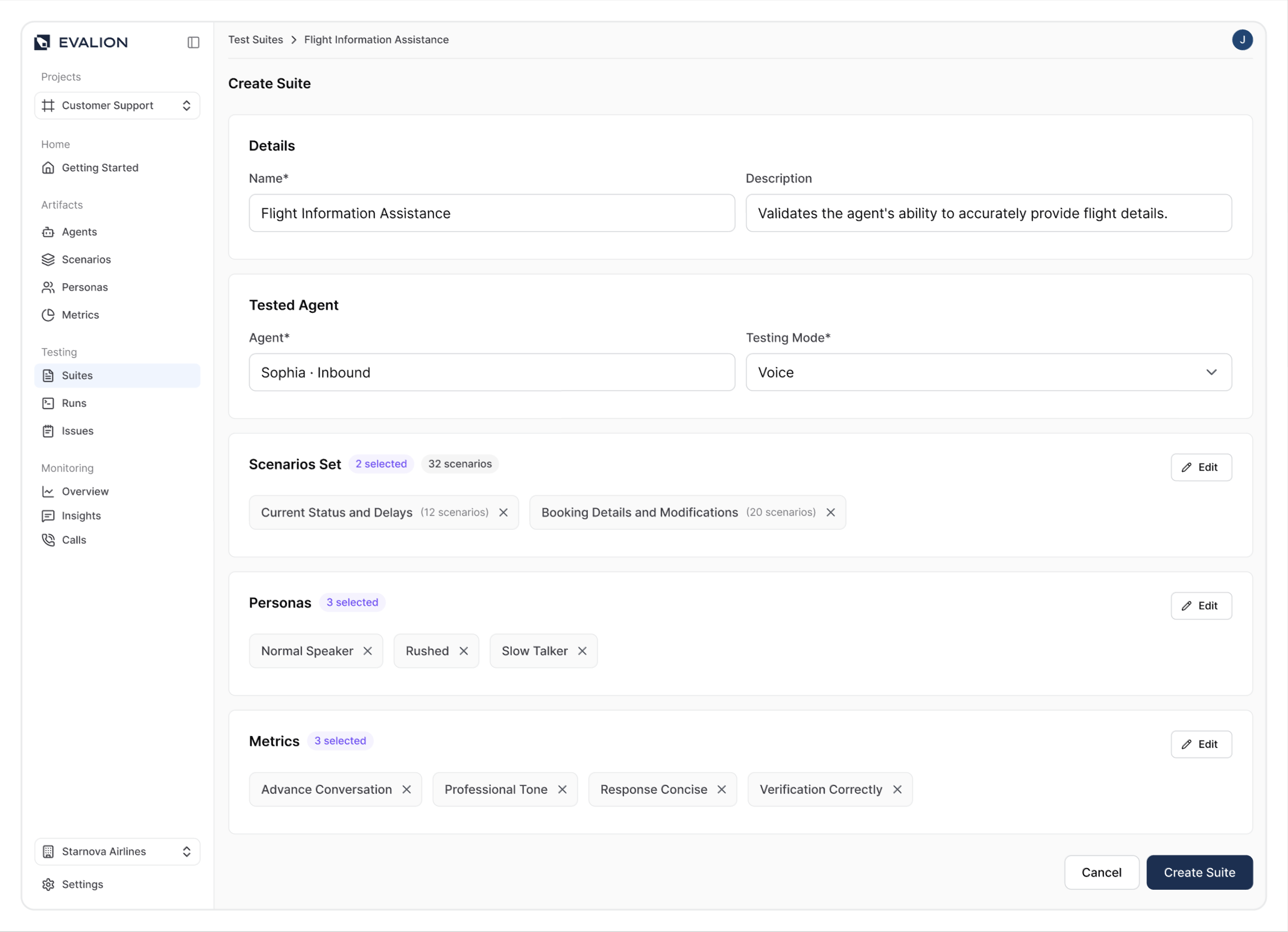
Click Create Suite to finalize your test case.
6. Access Your Test Cases
Navigate to Suites in the left sidebar to view all your test cases. You can create as many test suites as needed.
Select any test case to preview and modify configurations, including switching between different agent test modes.
Summary
You've successfully built a comprehensive voice AI testing framework using Evalion's AI voice agent testing platform. Through this tutorial, you've learned how to create realistic conversation scenarios that mirror real user interactions, configure custom success metrics that measure both semantic understanding and technical performance, and assemble complete test suites that validate your agent's behavior across different personality types.
In the next tutorial, we'll explore how to run & interpret test cases using Evalion's analytics to identify performance bottlenecks, making your voice agent ready for production deployment with confidence!
Updated about 2 months ago