
Creating Scenarios
Scenarios and Scenario Sets
Scenarios define specific test situations that simulate realistic user interactions with your AI conversational agent. Each scenario represents a single conversation journey, from the initial user request through to the final outcome.
Scenario Sets are collections of related scenarios grouped together for organized testing. This allows you to efficiently test multiple related conversations at once.
Example:
- Scenario Set: "Customer Support Interactions"
-
Scenario 1: Product return request
-
Scenario 2: Order status inquiry
-
Scenario 3: Technical troubleshooting
-
Scenario 4: Billing question
-
Creating Scenarios
You can create scenarios in two ways:
- Manually - Create individual scenarios one at a time
- CSV Upload - Import multiple scenarios at once for faster setup
Create Scenarios Manually
-
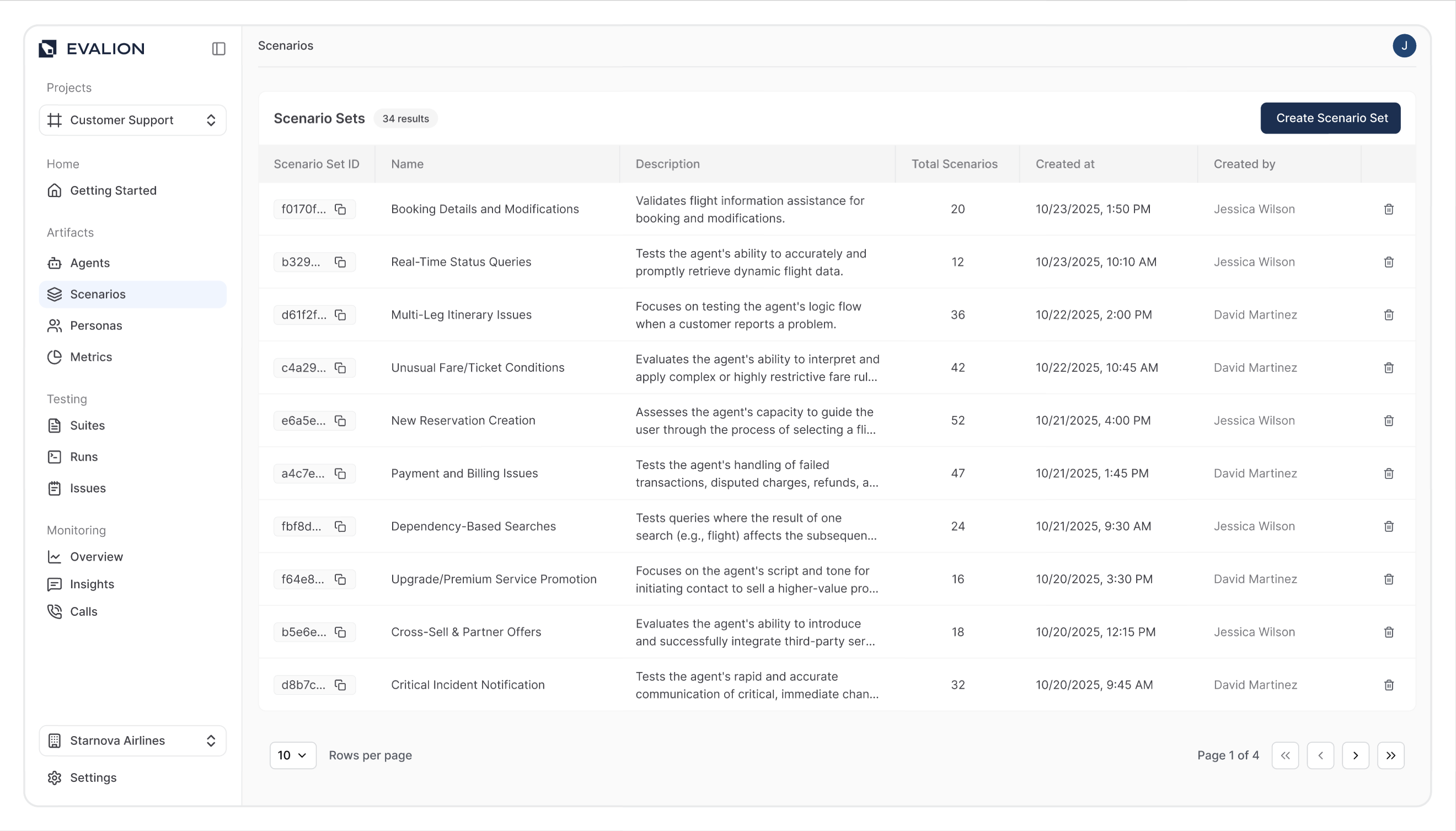
In the Evalion dashboard, go to Scenarios in the sidebar.
-
Click Create Scenario Set:
-
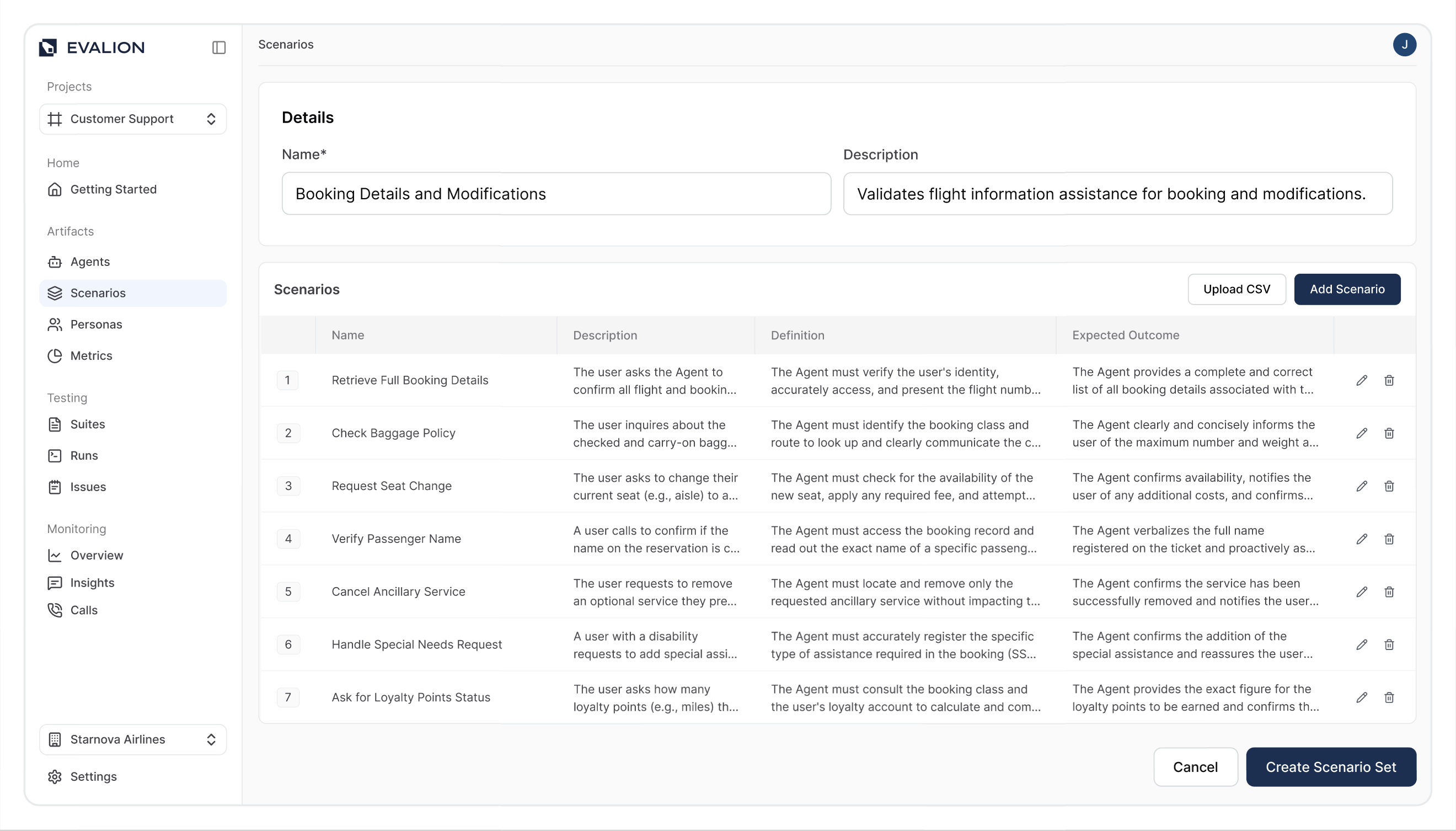
In the create scenario set page, enter the set details:
- Name: The name of your scenario set.
- Description: Scenario set description.
-
Click on the Add Scenario button to add your first scenario to the Set:
-
In the Add Scenario
pop-up, enter the following:-
Scenario Name: The name of your scenario.
-
Description: Scenario description.
-
Definition: Defining how exactly the simulation with the agent will go.
-
Expected Output: The expected outcome determines whether your agent passes or fails the test scenario. Define all requirements your agent must meet - if multiple outcomes are expected
(e.g., collect information AND provide confirmation AND schedule follow-up), list each one since Evalion validates that all conditions are satisfied before marking the test as successful.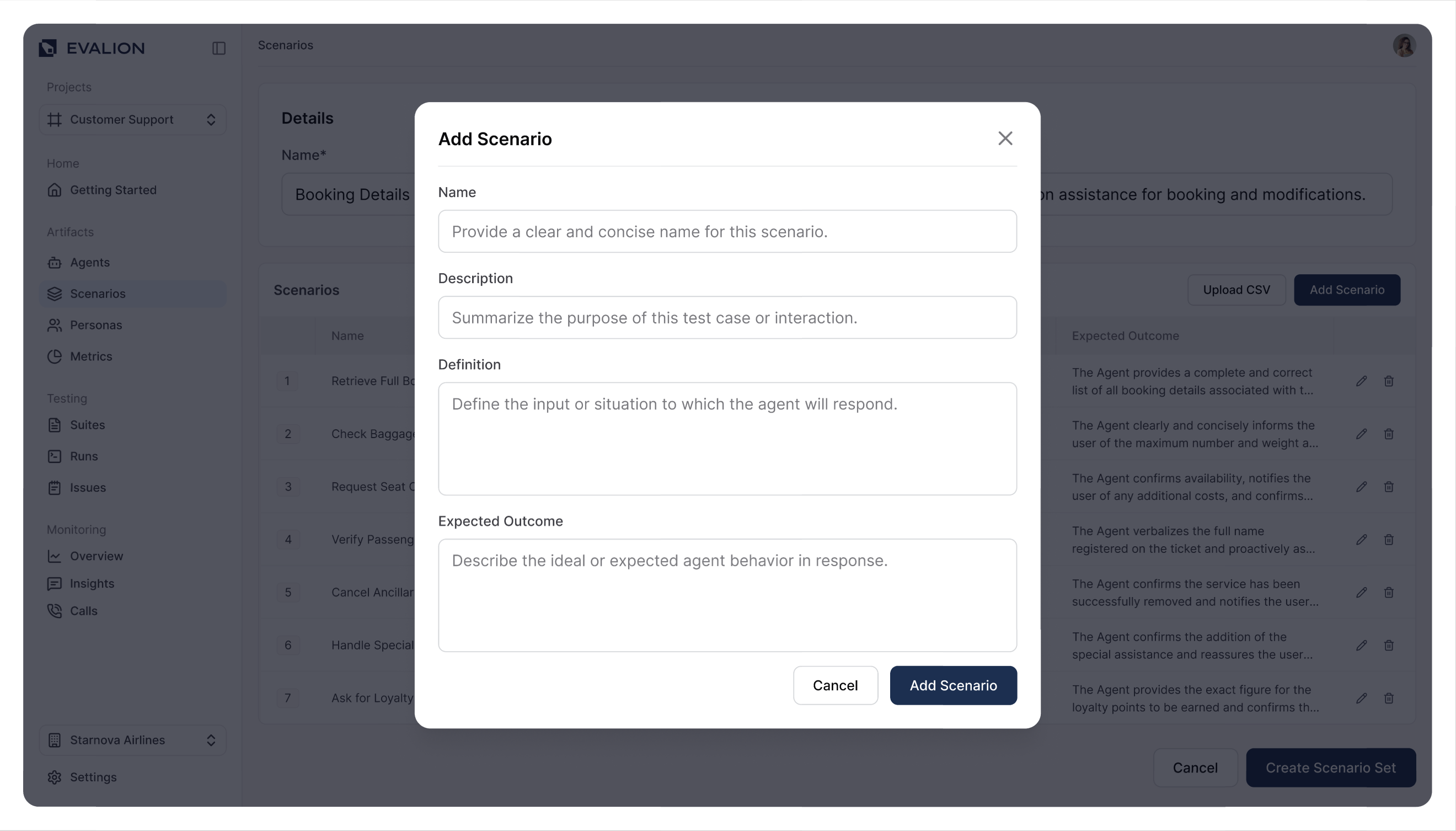
-
-
Click on Add Scenario to save.
-
Repeat steps 4-6 to add more scenarios to your set.
-
Click Create Scenario Set to finalize your scenario collection:
Import Scenarios via CSV
For faster setup when you have many scenarios, you can bulk upload them using a CSV file.
-
In the Evalion dashboard, go to Scenarios in the sidebar.
-
Click Create Scenario Set
-
Enter your scenario set details (name and description).
-
Click Import CSV or Bulk Upload:
-
Upload your CSV file or download Evalion's template for quick start, then click Import Scenarios:
-
Click Create Scenario Set to finalize your scenario collection.
Once you've successfully created your scenario set, the next step is to create a test suite.
Updated about 2 months ago